
Advising: Student Advising Details Report
Last edit date: 1/16/2026
Audience: Faculty and Staff
Purpose: This guide provides instructions for viewing the Student Advising Details Report. This report displays student information, credit summary, advisors, holds, tasks, program of study, course history, and financial information.
| Contents |
|---|
| Navigation |
| Report Overview |
| Student Summary |
| Course History |
| Financials |
| Viewing Another Student |
Navigation
- Login to the VPN if you are working off campus.
- Login to RamPortal using your WCU Single Sign On (SSO).
- Select the menu icon (☰) in the top left corner of the page.
- Click on Reporting and select Student Advising Details in the dropdown (Fig 1).
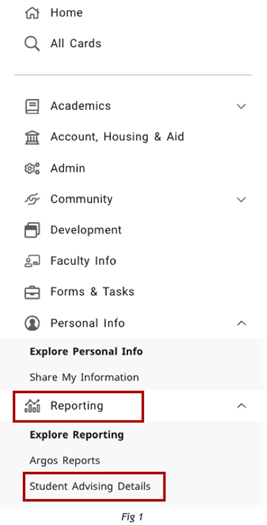
Fig 1 - Use Single Sign-On
When the Evisions window opens, do not enter your username and password. Click on Use Single Sign-On at the bottom of the window (see Fig 2)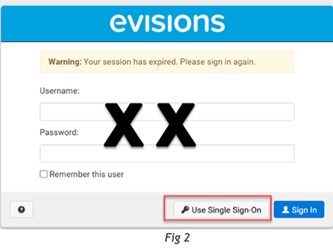
Report Overview
Once the report opens, there are three tabs available. Use the tabs at the top of the page to navigate between the sections of the report (see Fig 3)
- Student Summary
- Course History
- Financials

Student Summary
- On the Student Summary tab, enter the student’s RamNet ID or Banner ID in the appropriate field (see Fig 3).
- Select a Term from the dropdown on the right side of the page (see Fig 3).
- Click the green Search button.
The Student Summary Section displays the following information:
- Personal information, IDs, pronouns, and email addresses
- Student status and program of study information
- Credit summary with overall, WCU and transfer details for GPA and credits
- Assigned advisors
- Active holds and tasks
- Registered and Repeat Courses
Course History
The Course History tab displays academic history, including:
- Personal information
- Prior Institutions
- Test Scores
- Term summary
- Institutional course history
- Transfer and External course information
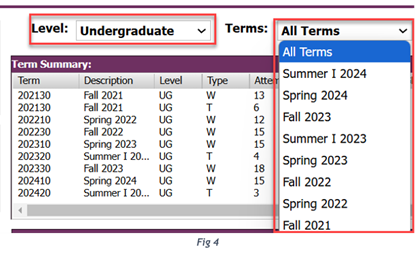
Course history can be viewed by Level (when applicable) and by All Terms or a specific term.
Financials
The Financials tab displays:
- Personal information
- Financial aid information
- Financial agreement status
- Overall balance due
- Term payment status
Viewing Another Student
To view another student’s information:
- Navigate to the Student Summary Tab.
- Click the red Clear button or enter a new RamNet ID or Banner ID.
- Select a Term and click Search.
For additional assistance, submit a ticket for support.