
Class Registration: Issue a Registration Override
Last edit date: 2/2/2026
Audience: Faculty and Staff
Purpose: Use this guide to understand how to issue registration overrides in RamPortal using SFASRPO.
| Contents |
|---|
| Navigation |
| Create a Registration Override |
| Search for A CRN |
Navigation
- If working off campus, login to the WCU VPN.
- Login to RamPortal using your WCU Single Sign On (SSO).
- Locate the Registration Card on your home page.
- Click on Issue a Registration Override (SFASRPO).
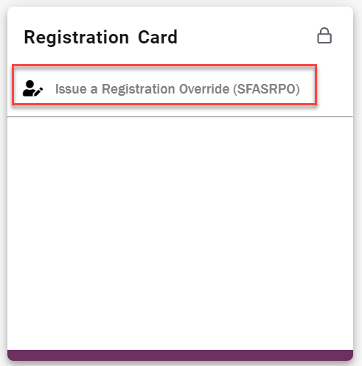
Fig. 1
Create a Registration Override
- Enter the Student’s ID and the Term and select Go.
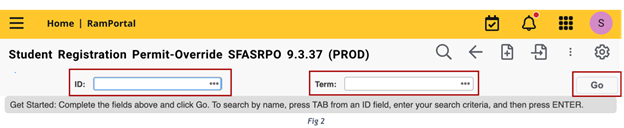
- Click into the Permit field. If an override already exists, select the Add (+) icon to insert a new row.
- Enter the override code or select the ellipsis (...) menu to get a list of available overrides.
- CRN Options
- Leave blank if the override applies to all sections of the course.
- Enter a CRN if the override applies to one specific section. See section on how to Search for a CRN at the end of this guide for more information.
- If No CRN is used, enter the Subject and Course Number. If no Section is entered, the override applies to all sections of the course.
- Add more overrides if needed by using the Add (+) icon or the down arrow to add another row.
- Repeat the steps above for each override.
- Select Save.
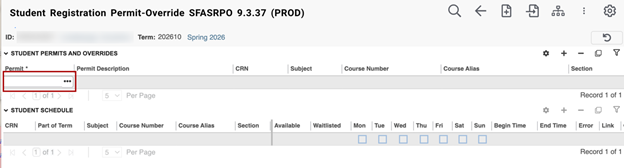
Fig. 3
Search for A CRN
- Click into the CRN field and select the ellipsis (...) and choose Search for Sections (SFQSECM).
- Enter your available search criteria, such as Subject or Course and click Go (Fig 4).
- Review the list of available sections. Use the arrow keys to move through rows or the page controls to view additional results.
- Select the desired course and click Select.
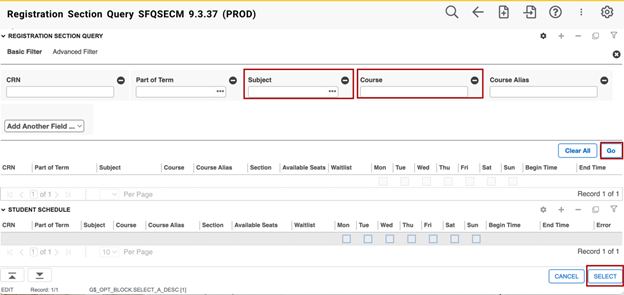
Fig. 4
For additional assistance, submit a ticket for support.